PomodoroTimer+

iPhone / iPad · iOS 16.2+

Work 25 minutes.Rest 5. Repeat.

A timer for the Pomodoro Technique, alternating work and rest. Pick a length, press Start, and it switches between work and rest on its own.

Scan with your iPhone

PomodoroTimer+

When it helps

What it does

  1. 01

    Work lengths to choose from

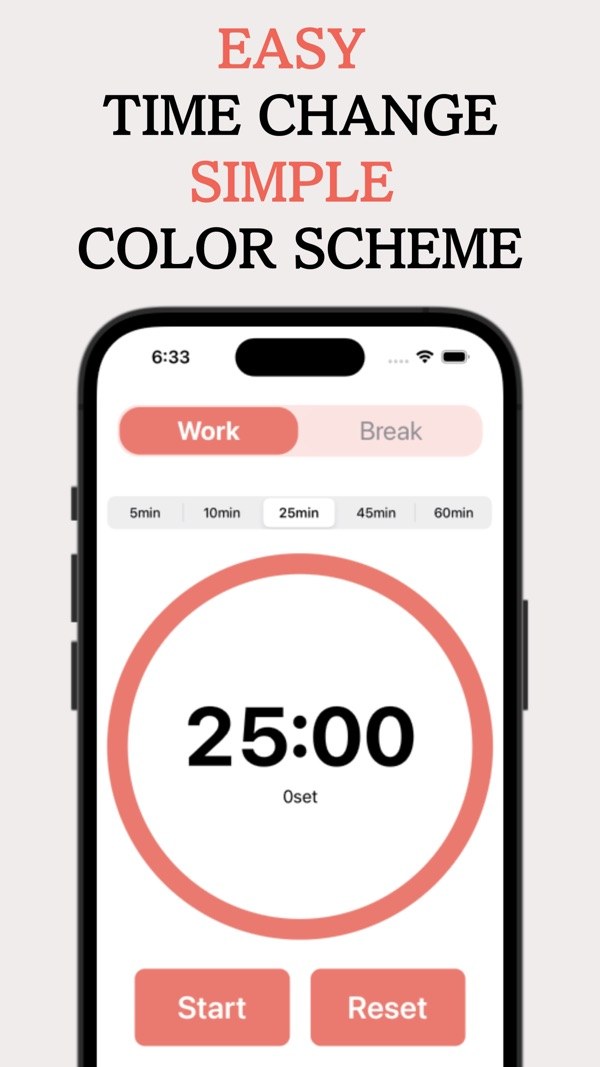
    Choose 5, 10, 25, 45 or 60 minutes of work. The time left appears in large digits inside the ring.

  2. 02

    Breaks in their own color

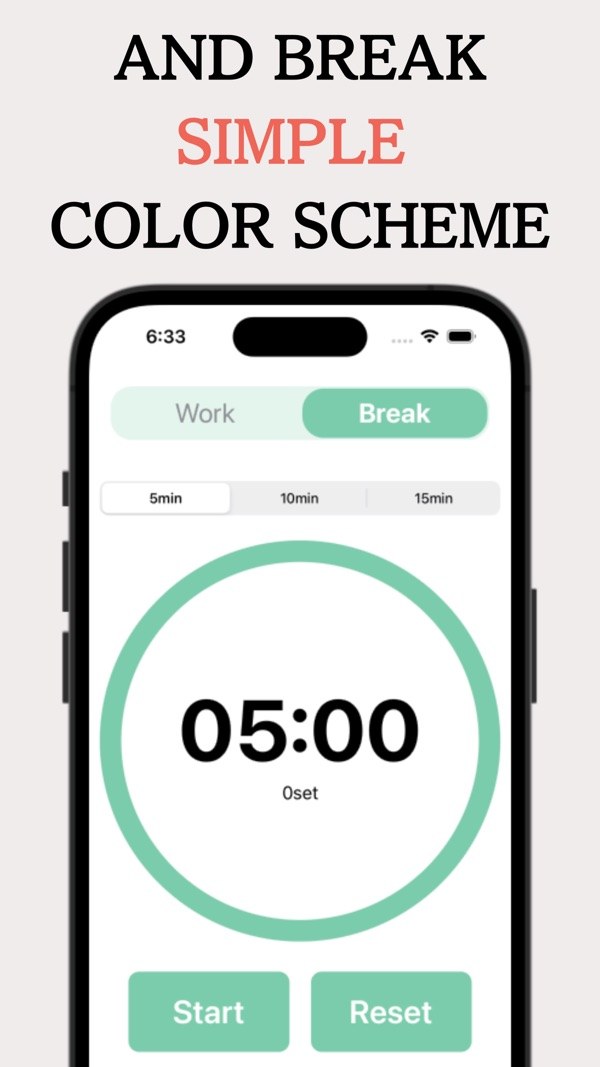
    Switch to Break and the screen turns green. Breaks can be 5, 10 or 15 minutes.

  3. 03

    Automatic work and rest

    Press Start and the timer moves between work and rest on its own. Pause, resume and reset are there too.

  4. 04

    Set count

    The number of sets you have completed is shown under the timer.

  5. 05

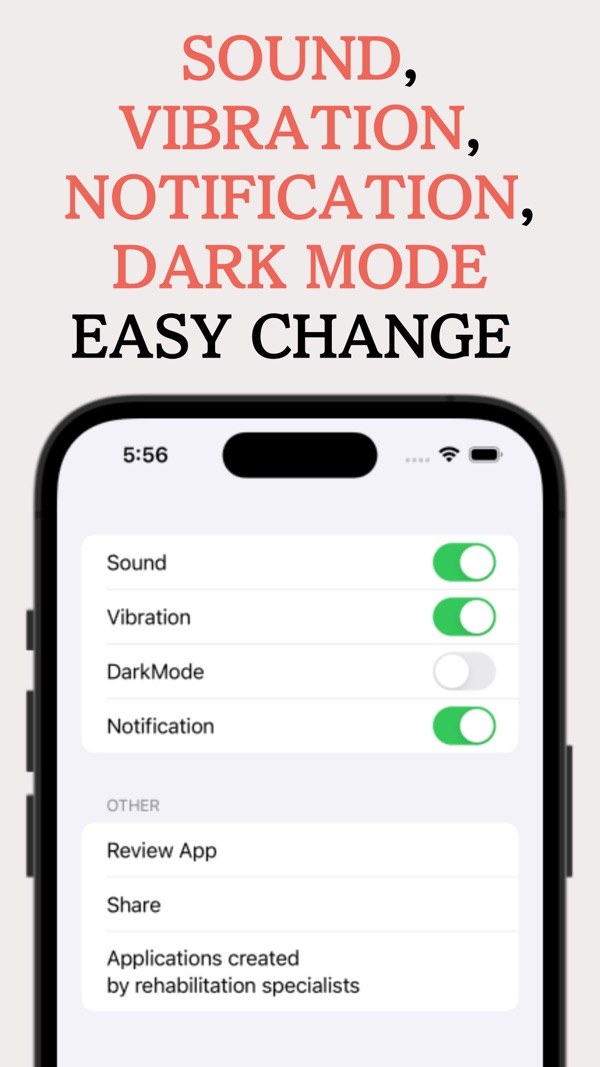
    Sound, vibration, notifications

    Turn sound, vibration and notifications on or off individually. Notifications also appear on the lock screen.

  6. 06

    Dark mode

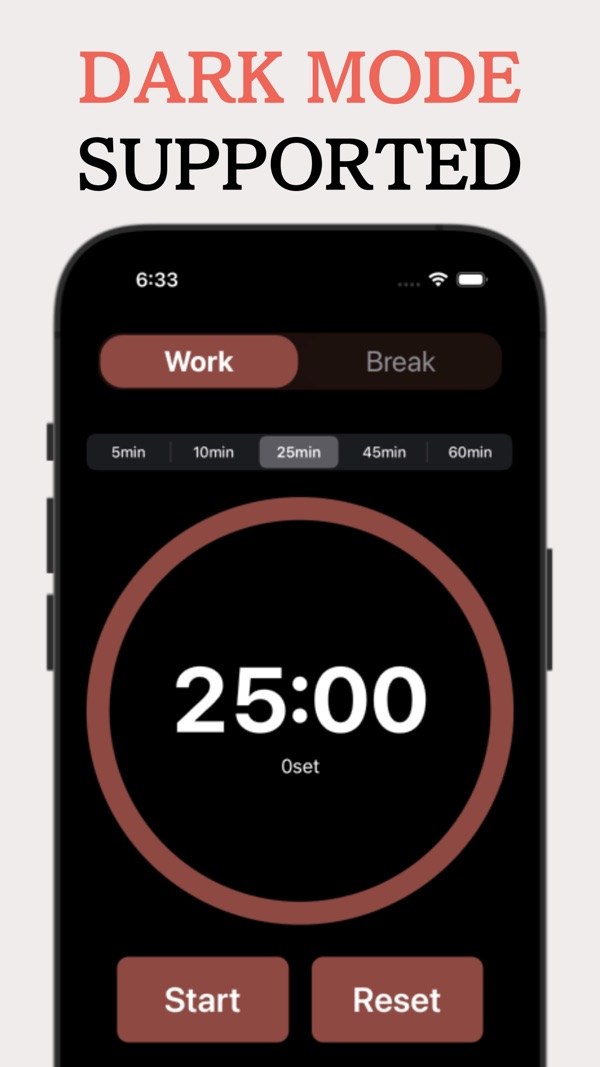
    Switch on dark mode in Settings for a black background.

In detail

Pick your work length with a tap
01

Pick your work length with a tap

On the Work screen, choose 5, 10, 25, 45 or 60 minutes. The remaining time appears in large digits in the middle of the ring.

  • Work: 5 / 10 / 25 / 45 / 60 min
  • Time left shown inside the ring
  • Start and Reset buttons
Break has its own color and lengths
02

Break has its own color and lengths

Switch to Break and the screen turns green. Break lengths are 5, 10 or 15 minutes, and the set count stays under the timer.

  • Break: 5 / 10 / 15 min
  • Switch Work and Break at the top
  • Set count shown
Automatic switching between work and rest
03

Automatic switching between work and rest

After you set the times, press Start and the timer moves between work and rest automatically. Pause, resume and reset are available, and the last time you set is saved.

  • Pause, resume and reset
  • Last timer time is saved
  • Next time, just press Start
Choose sound, vibration and notifications
04

Choose sound, vibration and notifications

In Settings, turn Sound, Vibration, Dark Mode and Notification on or off. You can mix them, such as sound only or vibration only.

  • Sound on / off
  • Vibration on / off
  • Notification on / off
Dark mode for dim rooms
05

Dark mode for dim rooms

Turn on dark mode and the background goes black. The timer works the same way on both the Work and Break screens.

  • Switch it in Settings
  • Black background

How it works

  1. 1
    Choose a work time

    Choose a work time

    Select Work in the tab at the top, then pick a length from 5 to 60 minutes.

  2. 2
    Choose a rest length

    Choose a rest length

    Switch to the Break tab and pick 5, 10 or 15 minutes.

  3. 3
    Press Start

    Press Start

    Press Start to run the timer. Work and rest switch automatically, and the set count is shown.

  4. 4
    Decide how it alerts you

    Decide how it alerts you

    In Settings, turn sound, vibration, dark mode and notifications on or off.

Screens

Pick a work length and start

FAQ

What is the Pomodoro Technique?

A way of working where you work for a set period, take a break for a set period, and repeat. This app is a timer built around it.

Can I change the work and rest times?

Work can be 5, 10, 25, 45 or 60 minutes, and breaks can be 5, 10 or 15 minutes.

Do work and rest switch automatically?

Yes. Once you press Start, the timer switches between work and rest automatically.

Is my last timer setting remembered?

Yes. The last timer length you set is saved automatically, even after a reset, so next time you only need to press Start.

Will I notice when time is up if the app is closed?

Yes. Notifications appear on the lock screen. You can also turn them off in Settings.

Can I use it silently?

Sound, vibration and notifications can each be switched on or off in Settings, so sound only, vibration only or notification only are all possible.

How much does it cost?

The app is free to download and shows no ads.

Which devices are supported?

iPhone and iPad, iOS 16.2 or later.

Press Start on the next 25 minutes.

Download on the App Store
PomodoroTimer+Get